Start Strong: Don’t Let Migration Kill Your Traffic
Website migrations are one of the fastest ways to destroy years of SEO progress if done wrong.
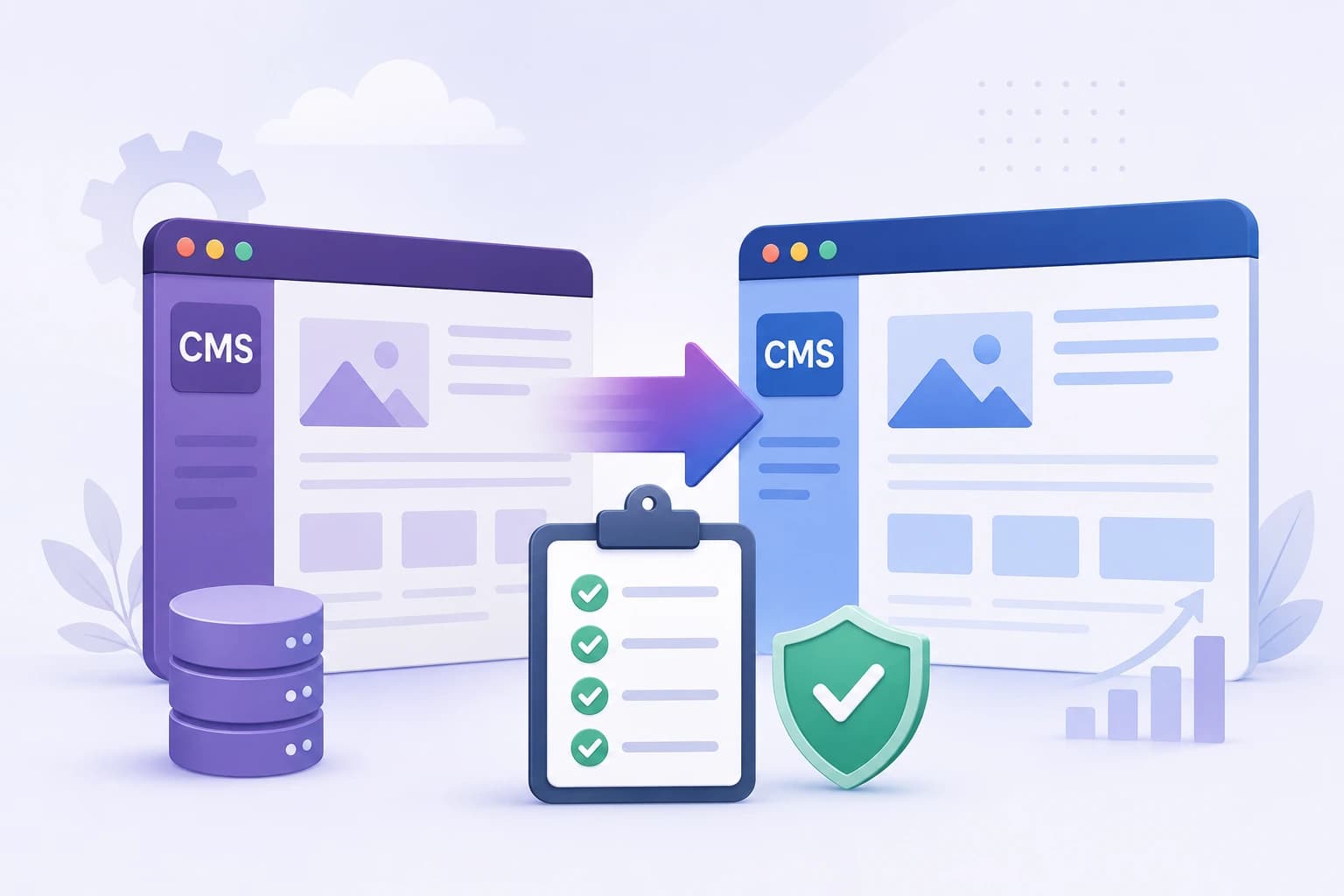
A CMS migration (like WordPress → Webflow, Drupal → Shopify, or custom → headless CMS) can lead to:
- Sudden traffic drops
- Lost rankings
- Broken pages
- Crawl issues
- Revenue loss
For Learn About: Build a Website With AI in One Day, Click Here!
In this guide, you’ll get a battle-tested CMS migration checklist used by SEO professionals to ensure a smooth transition without losing rankings.
But when handled strategically, it can boost performance, UX, and conversions.
Need Help With Your Migration?
I help businesses migrate websites without traffic loss and with SEO growth.
CMS Migration Checklist (Step-by-Step)
1. Pre-Migration Planning (Most Important Phase)
This is where most failures happen.
Define Your Migration Goals
- Better performance?
- Improved SEO?
- New design or UX?
- Switching CMS (e.g., WordPress → Headless)?
Be clear. Migration without a goal = chaos.
Full Website Audit
Audit everything before touching your site:
- URLs (crawl with Screaming Frog)
- Top-performing pages
- Backlinks
- Indexing status
- Technical issues
Example Audit Table
| Element | Tool | Purpose |
|---|---|---|
| URLs | Screaming Frog | Crawl structure |
| Traffic | Google Analytics | Identify top pages |
| Keywords | Ahrefs / SEMrush | Ranking analysis |
| Backlinks | Ahrefs | Link equity |
✅ Backup Everything
- Database
- Media files
- CMS data
- Themes & plugins
👉 Never migrate without a backup.
2. URL Mapping & Redirect Strategy
This is the #1 SEO-critical step.
Create a URL Mapping Sheet
| Old URL | New URL | Redirect Type |
|---|---|---|
| /blog/seo-tips | /seo-tips | 301 |
| /services | /our-services | 301 |
Use 301 Redirects
- Pass SEO authority
- Preserve rankings
- Avoid 404 errors
⚠️ Never use 302 unless temporary.
3. Technical SEO Preparation
Before migration, lock these down:
On-Page SEO Elements
- Title tags
- Meta descriptions
- Header structure (H1–H6)
- Internal linking
- Image alt text
Technical Setup
- XML sitemap
- Robots.txt
- Canonical tags
- Structured data
Internal Linking Strategy
Link to relevant pages like:
- “website migration SEO checklist”
- “technical SEO audit guide”
- “how to fix crawl errors”
Use keyword-rich anchor text naturally.
4. CMS Migration Execution
Now comes the actual move.
Content Migration
- Pages
- Blog posts
- Media
- Metadata
Design & UX Transfer
- Mobile responsiveness
- Core Web Vitals
- Navigation structure
Common Migration Mistakes
- Missing redirects
- Broken links
- Lost metadata
- Duplicate content
5. Testing Before Launch
Never go live without testing.
Pre-Launch Checklist
- Crawl new site
- Test redirects
- Check forms
- Validate schema
- Mobile testing
Example Crawl Comparison
| Metric | Before | After |
|---|---|---|
| Indexed Pages | 120 | 118 |
| Errors | 5 | 2 |
| Redirects | 0 | 115 |
6. Post-Migration SEO Checklist
This phase determines success.
Submit New Sitemap
- Google Search Console
- Bing Webmaster Tools
Monitor Performance
Track:
- Rankings
- Traffic
- Crawl errors
- Index coverage
👉 A small drop is normal. Long-term drop = problem.
✅ Fix Issues Immediately
- 404 errors
- Broken redirects
- Slow pages
If you’re planning a CMS migration and want zero SEO loss, I can help you:
✔ Full migration checklist implementation ✔ Redirect mapping ✔ Technical SEO setup ✔ Post-migration monitoring
Pro-Level CMS Migration Tips (E-E-A-T Insights)
1. Don’t Change Everything at Once
Changing CMS + design + structure = high risk.
👉 Keep one variable stable.
2. Preserve Top Pages First
Your top 20% pages drive 80% traffic.
👉 Protect them aggressively.
3. Benchmark Before Migration
Take snapshots of:
- Traffic
- Rankings
- Conversions
4. Use Staging Environment
Never migrate directly on live site.
5. Communicate With Stakeholders
SEO, devs, designers must align.
What is a CMS migration checklist?
A CMS migration checklist is a step-by-step guide used to safely move a website from one content management system to another while preserving SEO rankings, traffic, and functionality.
How to migrate a website without losing SEO?
To migrate a website without losing SEO:
- Audit your current site
- Map old URLs to new URLs
- Set up 301 redirects
- Preserve metadata and content
- Monitor performance post-migration
FAQ (People Also Ask Optimized)
It depends on site size, but most migrations take 2 to 8 weeks, including planning, execution, and monitoring.
A small temporary drop is normal. With proper SEO migration strategy, traffic usually recovers within weeks.
The biggest risk is incorrect or missing redirects, which can lead to lost rankings and broken pages.
Yes—if your current CMS limits performance, speed, or scalability, migration can significantly improve SEO.
If your website generates traffic or revenue, working with an expert reduces risk and ensures long-term growth.
Final Thoughts
A CMS migration isn’t just a technical task, it’s an SEO-critical operation.
Done right, it can:
- Improve rankings
- Boost conversions
- Enhance performance
Done wrong, it can wipe out years of growth.
For Learn About: How to Plan a Website Rebuild, Click Here!
Planning a CMS migration?
👉 I’ll help you migrate your website without losing traffic or rankings
✔ Full SEO migration strategy ✔ Technical implementation ✔ Post-migration recovery plan